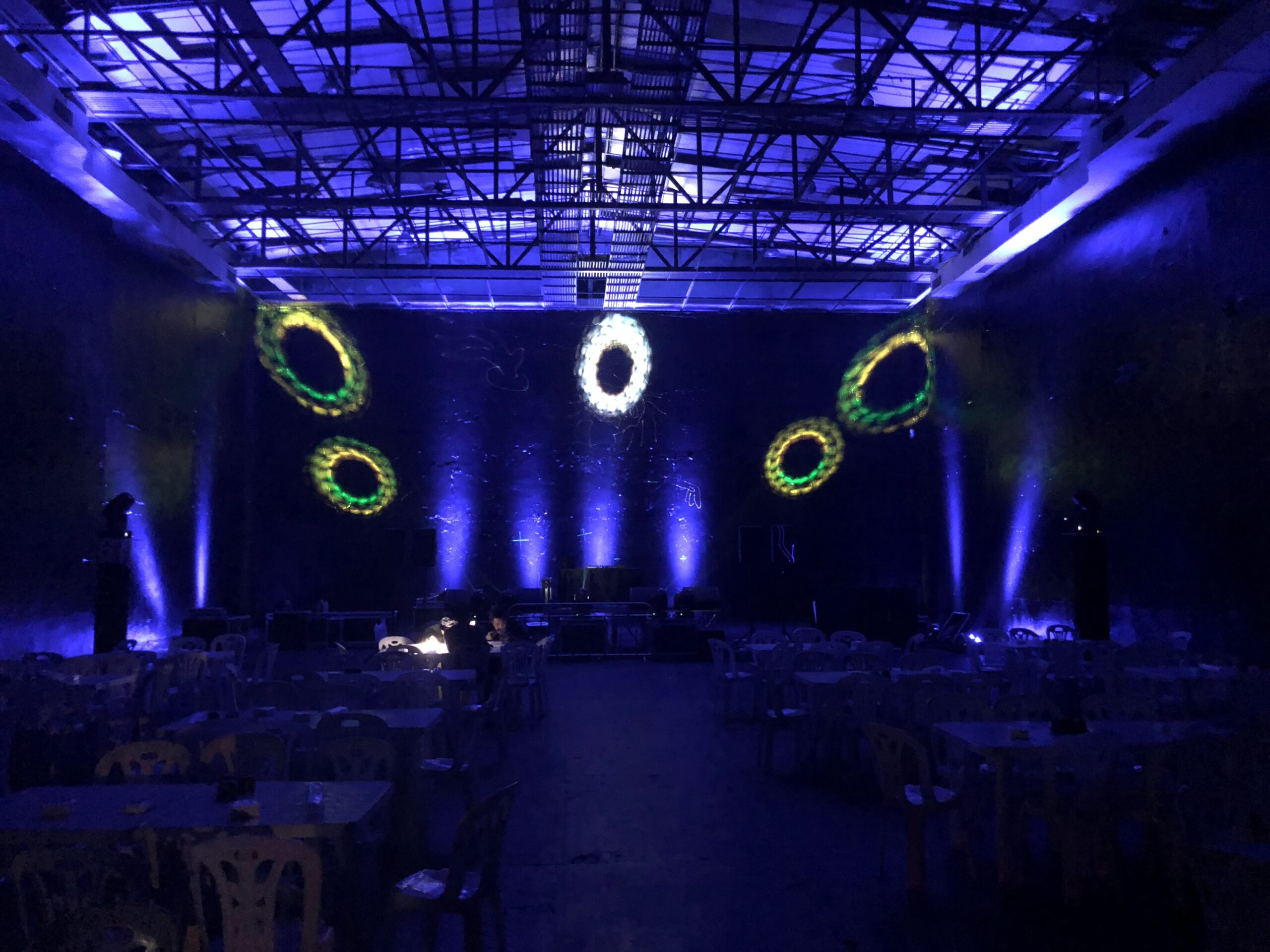
Looking for a way to add some extra pizzazz to your event photos? Laser lights might just be the ticket! These lights create amazing time tunnel effects that are perfect for capturing memorable moments. With the added bonus of a smoke machine, laser lights are sure to impress.
The laser lights can also be used to create an impressive entrance for your guests. Guests will be mesmerized by the vibrant colors and the intricate patterns the laser lights can create. You can even choose to customize the laser lights to fit your event theme. Once the laser lights are set up, they will be sure to be the highlight of the event. With their dazzling effects, they will make your event photos truly stand out. And thanks to the smoke machine, your guests will be sure to have an unforgettable time. So, if you’re looking to add some extra pizzazz to your event photos, look no further than laser lights!
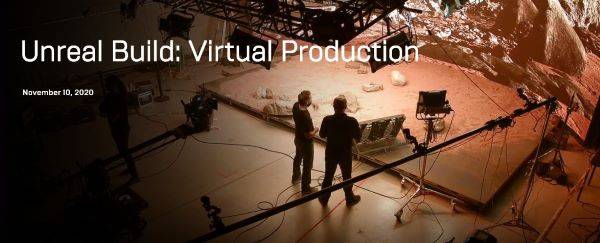
With the upcoming scheduled release for Unreal Engine 5 we thought it a good idea to look over the new virtual production features. Looking past the obvious Nanite and Lumen game changers and focusing in on specific Unreal Engine 5 virtual production pipeline improvements and changes.
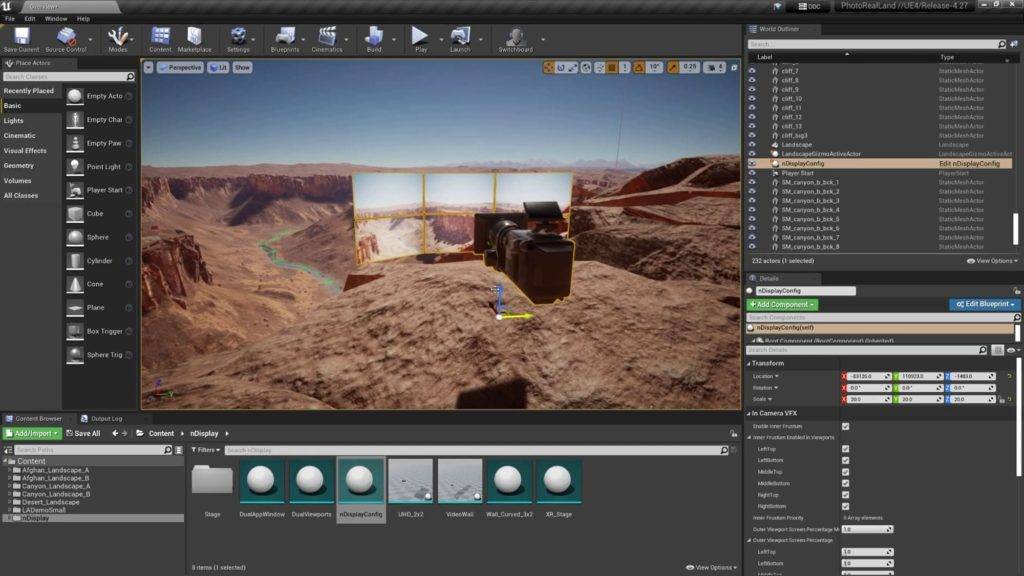
nDisplay Integration Improvements
To start our list of virtual production improvements we have the growth of nDisplay integrations between both internal engine utilities and external plugin partners. A prime example of such a integration is the Stats Overlay allowing for typical UE workflow when working with projection policies. The main improvements are as follows:
Stats Overlay: We’ve added the ability to support UE stats text fields overlay when using nDisplay Projection Policies.
Procedural Mesh Policy: We’ve provided the necessary API calls to push arbitrary mesh data to Projection Policies and update in real-time while the cluster is running.
Public Functions and Delegates: Call back and delegate functions have been added for Pre/Post/Tick specifically to further help and support media server integration.
nDisplay UX Improvements
Epic has put an extensive focus on more user-friendly interfaces and improved visualisation formats in recent months for both nDisplay and ICVFX configs. This continues into the roadmap of Unreal Engine 5 with further developments of visualisation through the enabling of preview of the view frustum volumes and viewport border visualization. Epic also focuses down on further optimisations and fixed to the Root Actor in terms with the benefit of better performance and rendering accuracy. Key nDisplay UX improvements:
Optimised in-level preview performance and rendering accuracy
Per-Viewport post-process material
Viewport border visualization
View frustum volume visualization
Frustum overscan for ICVFX
The existing FOV multiplier feature helped account for a camera that may move too quickly for the system latency to catch up, but Unreal Engine 5.0 introduces per-direction controls (left, right, top, bottom) for inner frustum overscan. This gives stage operators more sophisticated options for dialling in the size to match the needs of specific shots. such as:
A whip pan in one direction, where the inner frustum overscan should only expand in that direction, rather than all around
A two-camera shot where the cameras are very close on stage and must share the same inner frustum, expanded to account for the second view
A shot that is occluded by a large set piece, where rendering what’s behind it is unnecessary and can save overhead for what is seen in camera
Operators can also choose to opt in or out of adapting the render resolution to the overscan values (vs. scaling), giving them the power to balance maximum image quality with performance at frame rate.
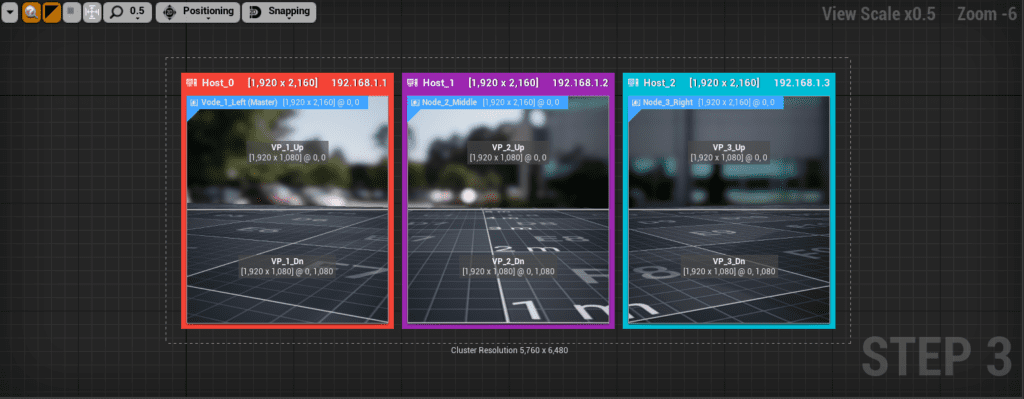
nDisplay viewport rotation for output mapping
nDisplay now supports the rotations of viewport outputs within the 3D Config Editor. This optimizes LED processor canvas usage and aids in the efficiency of node rendering and viewport configuration. Full support for the following rotations:
Rotate 90 degree CW
Rotate 90 degree CCW
Rotate 180 degree
Flip horizontal
Flip vertical
nDisplay failover
Unreal engine 5 brings the introduction of nDisplay failover logic to displays and stages. Allowing clustered systems can gracefully recover from the most common failure types by allowing a render node to drop from the cluster. Users can also implement their own failover logic and alternatively use content from existing live backup nodes. Common failures include:
Network discoverable: when a given PC crashes or fails to respond within a predefined timeout value, it is identified as a failed node and automatically drops from the cluster.
Hardware (visual artefacts): non-fatal visual failures where the system is still responding from the network (e.g. memory corruption, bad output, render artefacts). Users can manually send a kill command to the failed node and it will drop immediately from the cluster.
Content crash: this is when an Unreal Engine project crashes due to an unforeseen engine or content error on all PCs. This case is not currently handled and users will need to restart the whole cluster again.
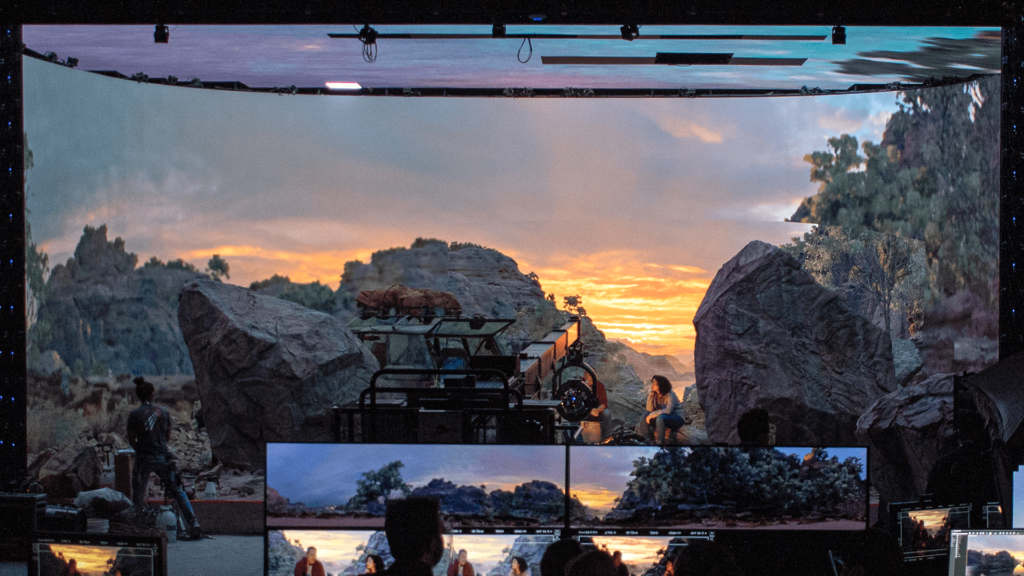
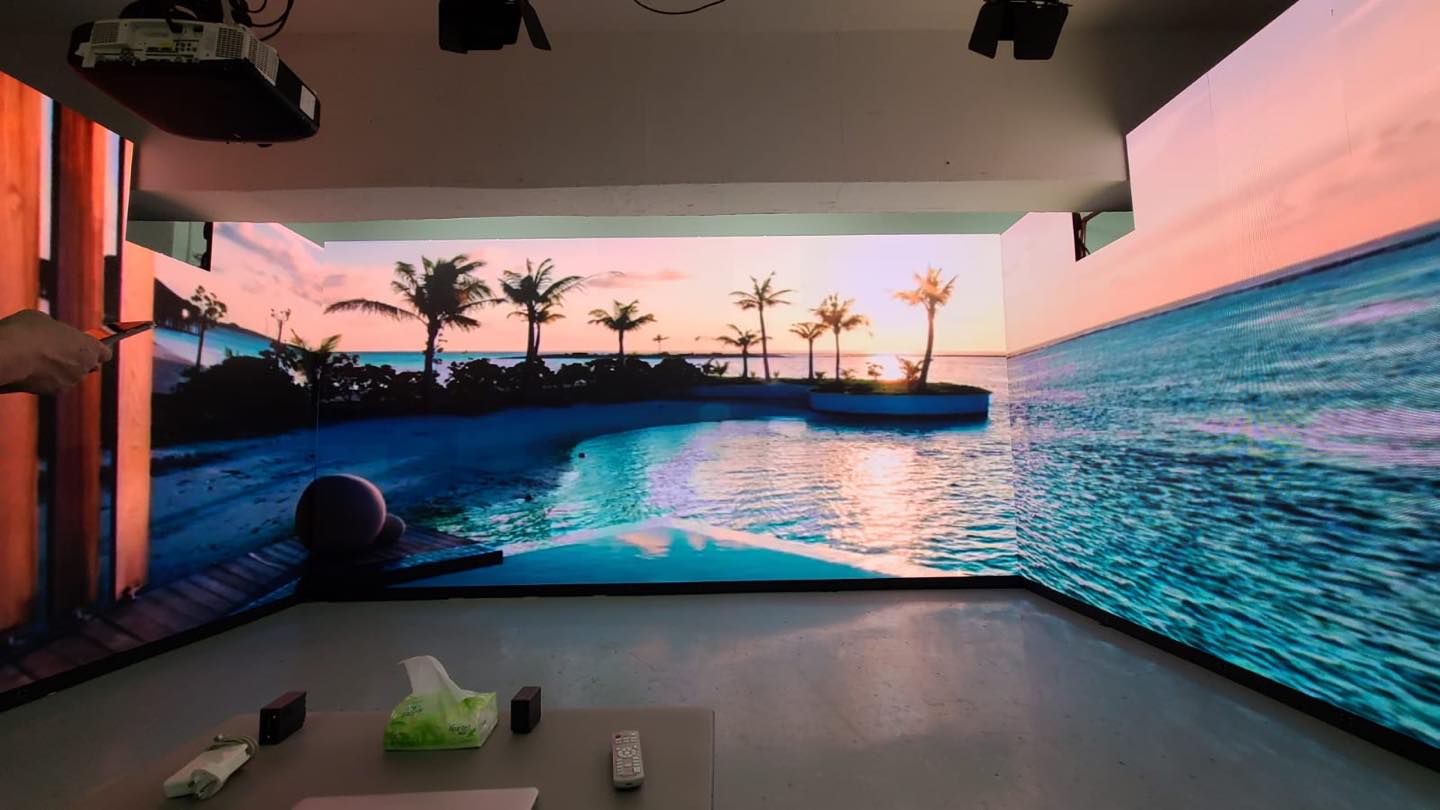
LED video wall virtual production uses a dynamic background to match the perspectives and parallax from the camera during the film-making and makes the camera able to shoot photoreal photography. … The virtual sets on the wall look the same as the physical set pieces, which can also interact with props freely as needed.
Virtual production is revolutionising filmmaking. LED screens with quality LED processing are being used as impressive replacements for traditional green screens, enabling filmmakers to capture both live action and CGI in-camera together.
From pre-postproduction, software is necessary to help propel the innovations of virtual production pipelines. We can help make that happen. If you are a new user or a veteran filmmaker, learn how to get free tools and up to speed fast. Perforce Virtual Production When it comes to data management and speed, leading studios trust Perforce. Did you know that 17 of the top 22 games of 2019 were built with Perforce Helix Core? And 19 of the top 20 AAA studios choose us to version and manage their digital assets. Why? This is because Perforce Helix Core handles: Remote siloed contributors. Lots of large files. Range of digital assets. Numerous iterations. Security for valuable IP. Binary files, audio files, video files, code, and more can all be stored and securely versioned inside a Helix Core depot. Your teams get lightning-fast performance, thanks to Perforce Federated Architecture. Then when you’re ready to render, everything can be pulled into your game engine. Because Helix Core integrates with more than just Unreal and Unity. It offers integrations with the tools your digital creators are already using— 3ds Max, Maya, and more.












你必須登入才能發表留言。